Improver Quick Start Guide
Basic Terminology
| Wolonote Account | A Wolonote user account is created when a user registers on the Wolonote platform to access various Wolonote applications and services. This account allows users to log in and use the available features, including the Improver application. |
| Session | The video conferencing feature in the Improver application allows members to connect and collaborate remotely. It facilitates real-time communication, enabling users to engage in discussions, share content, and work together efficiently, regardless of their location. |
| Internal Members | The members of Improver who belong to the same Business Unit (BU) are users that are grouped based on their affiliation with a specific business unit within the organisation. These members can collaborate and interact with each other within the same BU, while also having the ability to interact with members from other BUs as needed. |
| External Members | The members of Improver who belong to business units other than Improver are users that are part of different organisational units within the platform. They can be invited or added to the Improver application for collaboration and interaction, allowing cross-BU communication and teamwork on various projects or tasks within the Wolonote ecosystem. |
Create New Wolonote Account
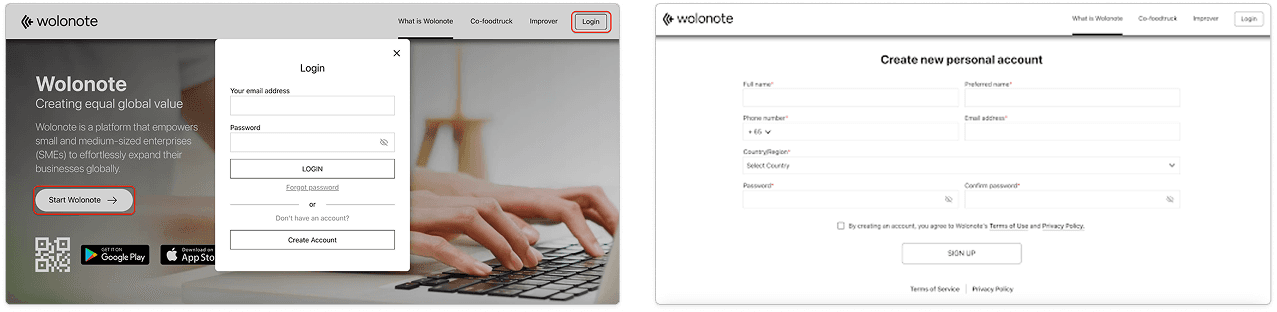
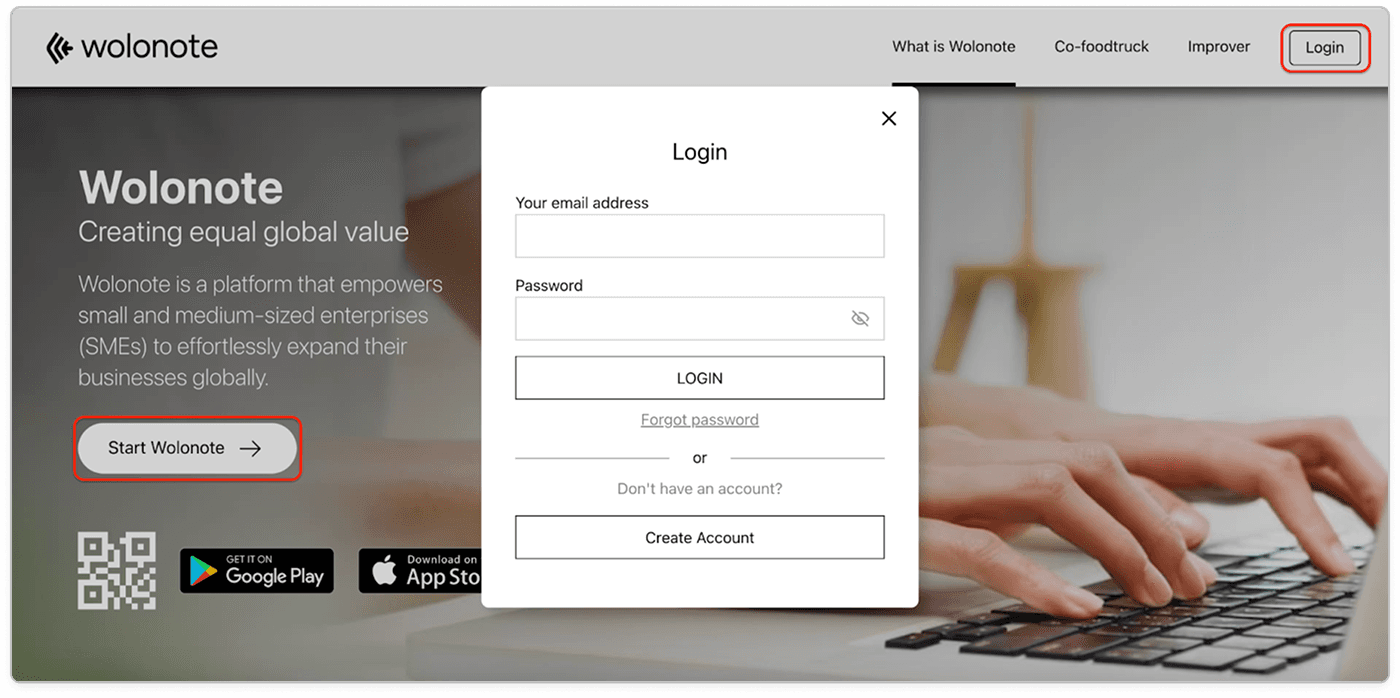
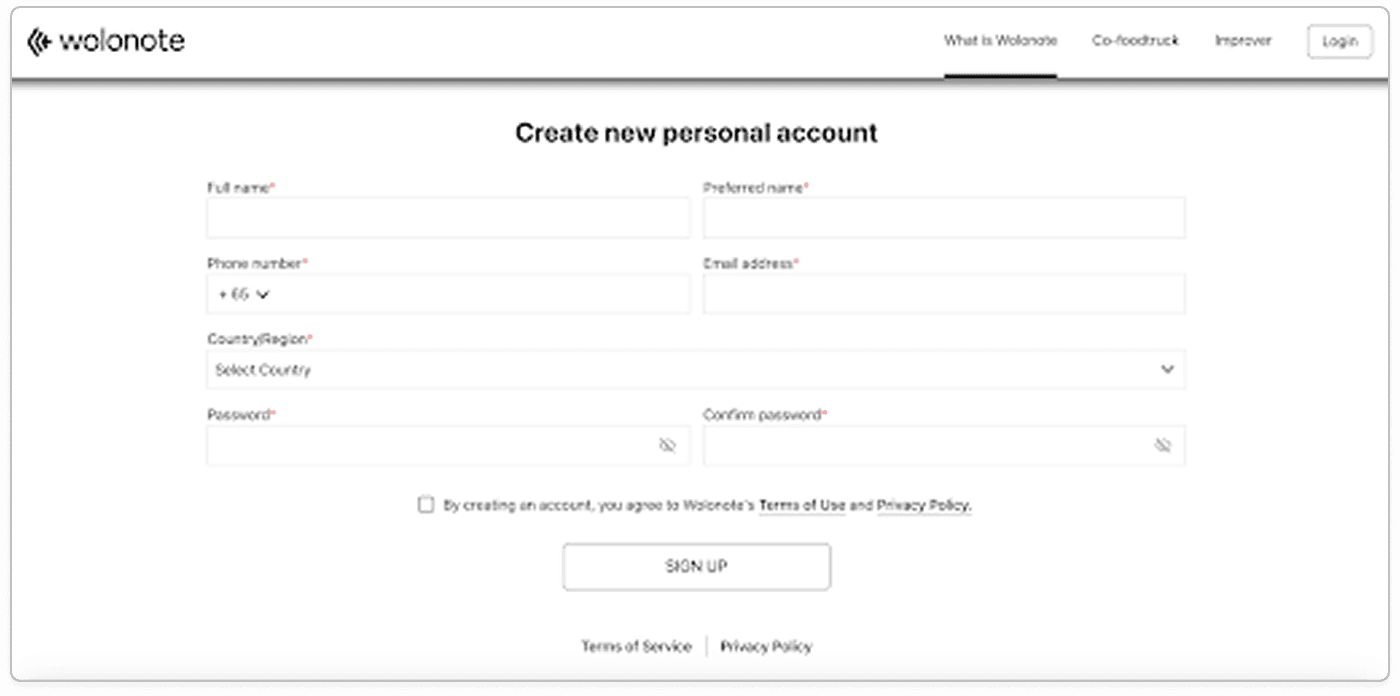
Users need a Wolonote account to access Improver application. To create a new Wolonote account, visit https://wolonote.com, select Create New Account option, and fill in the required details. After verifying the email with an OTP, the Wolonote account will be created and can be used to access the Improver application.
Logging into Improver
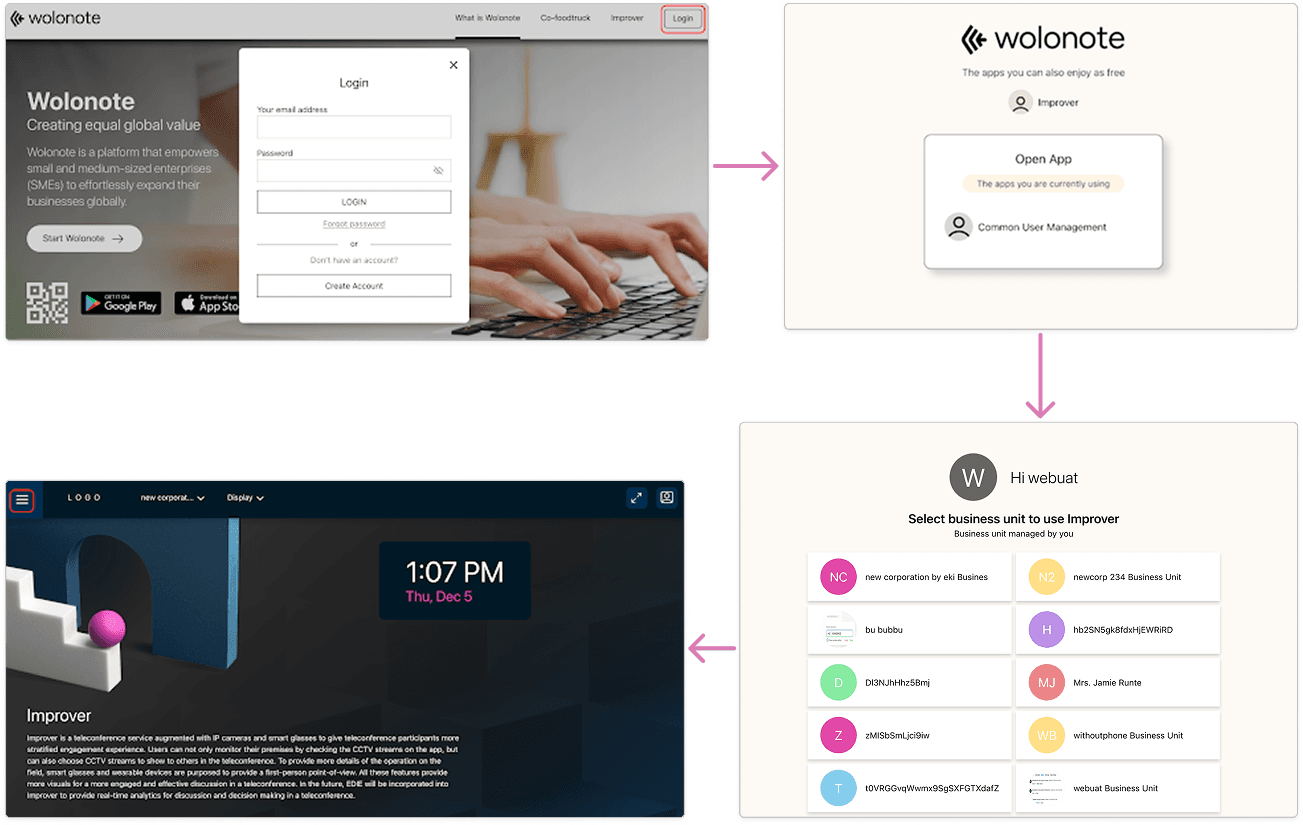
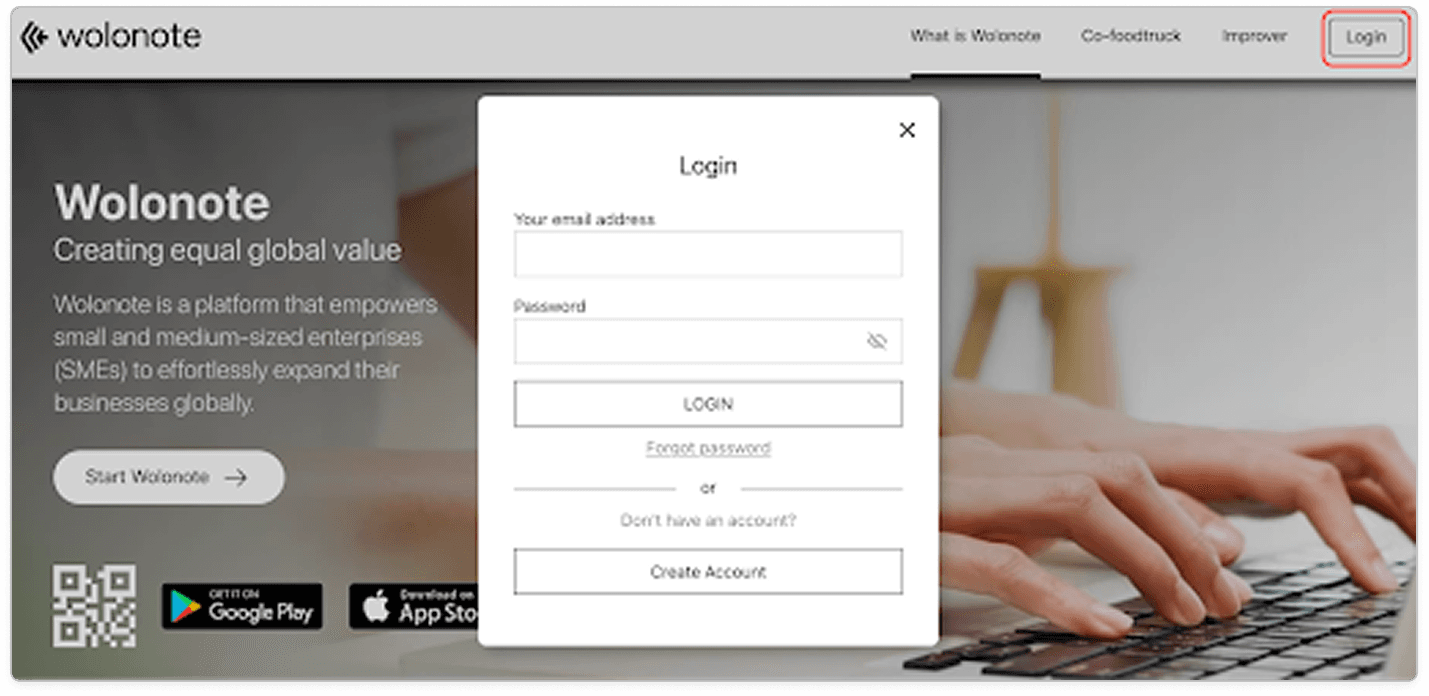
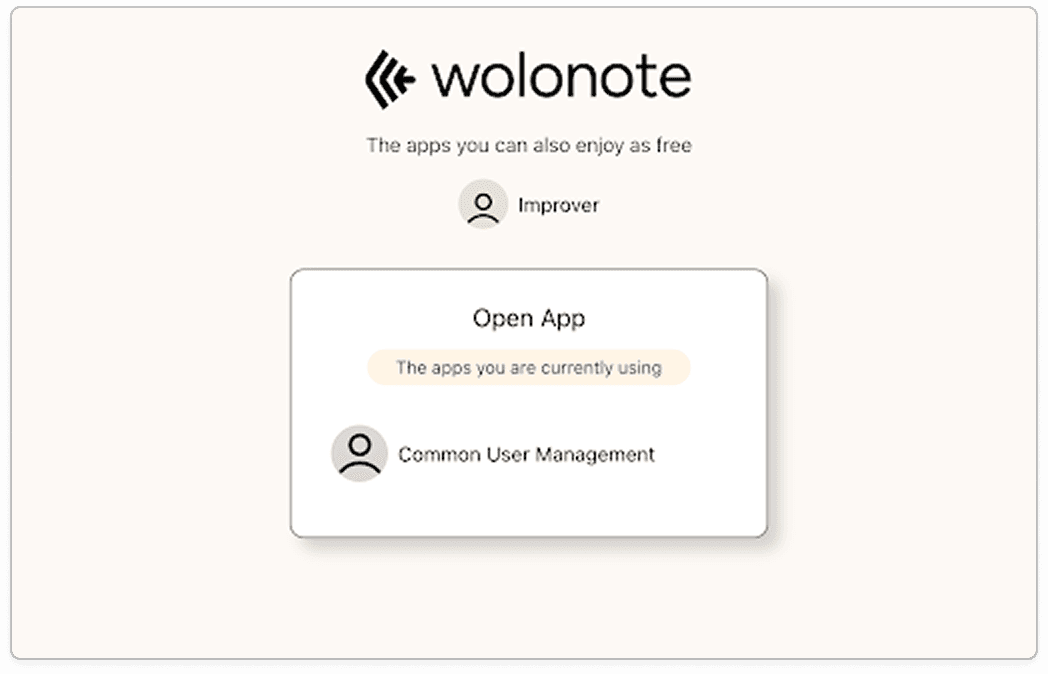
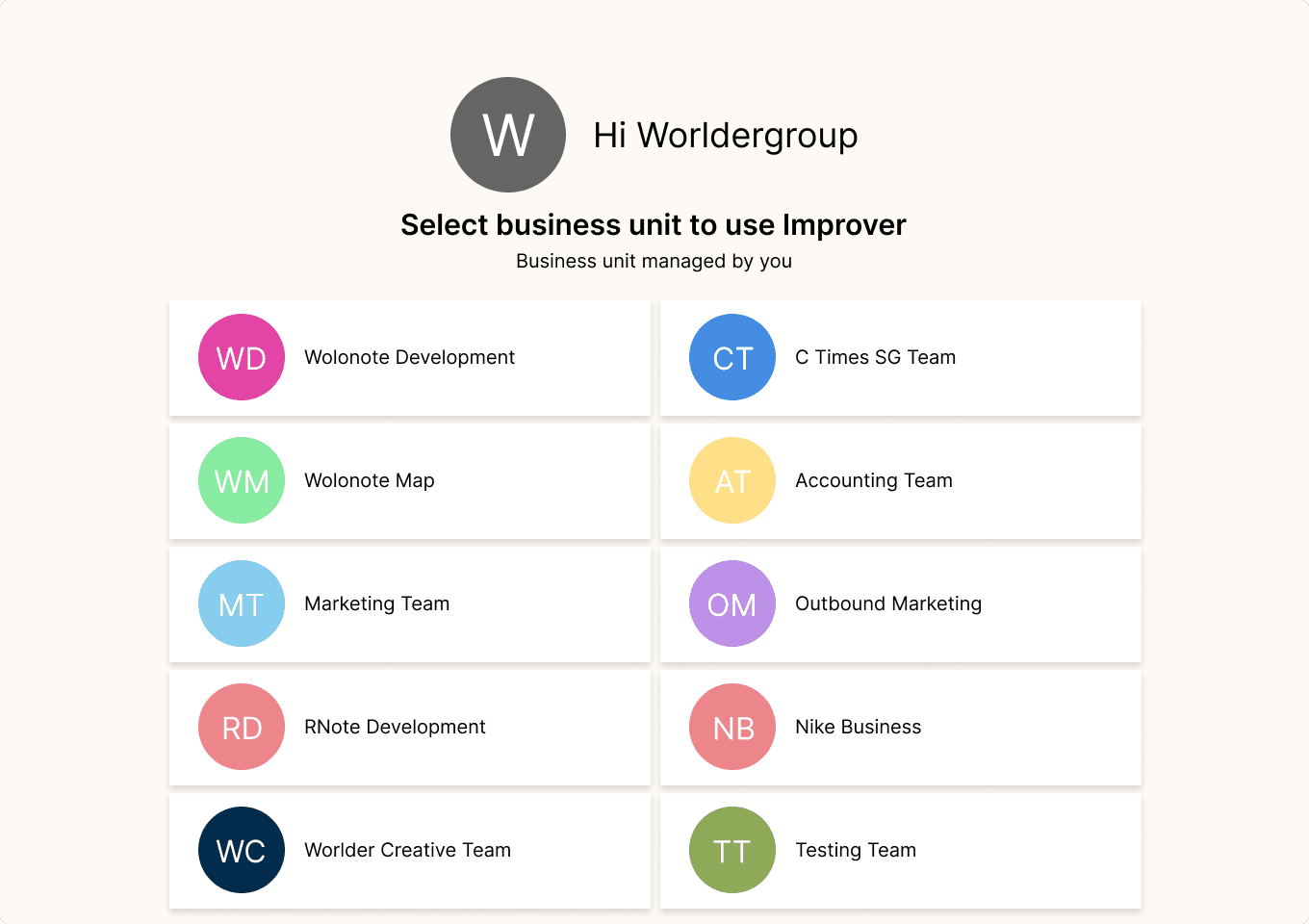
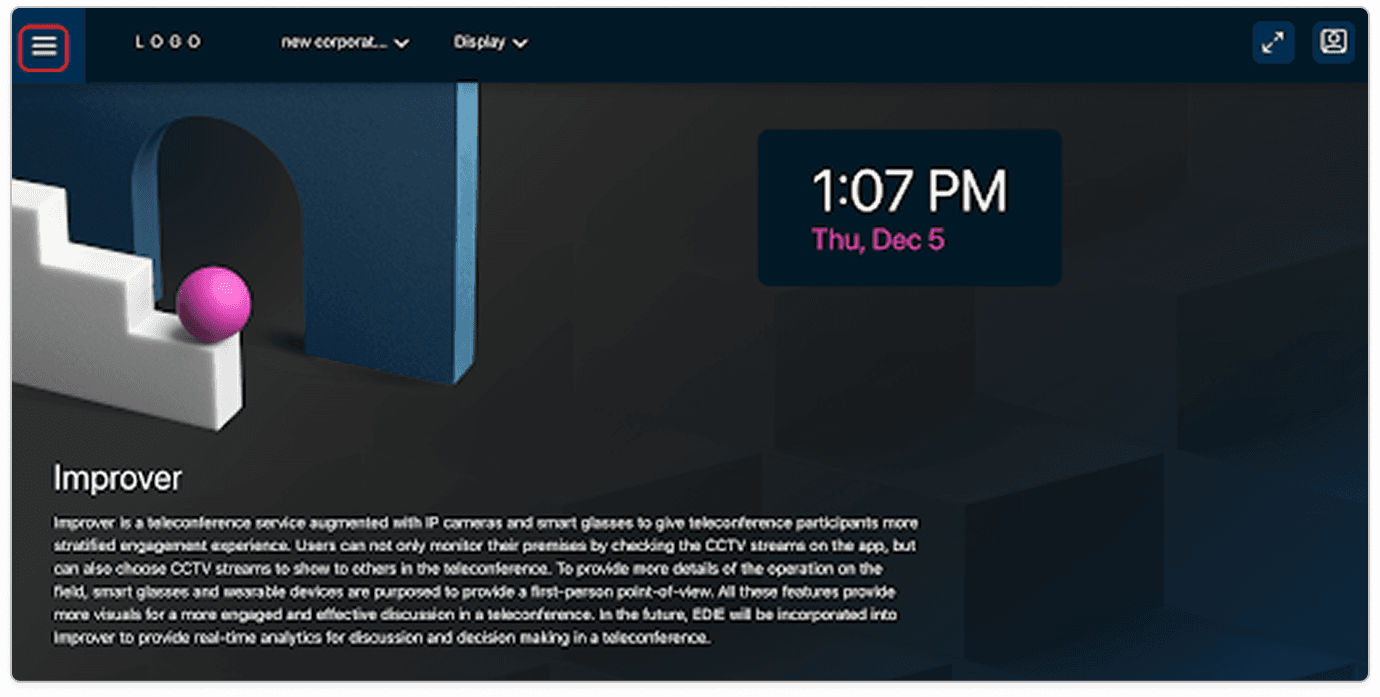
Once users create an account on Wolonote, they can log in at https://wolonote.com using their credentials. After logging in, they can select Improver and choose their preferred Business Unit, which will take them to the Improver home page.
Invite New Member
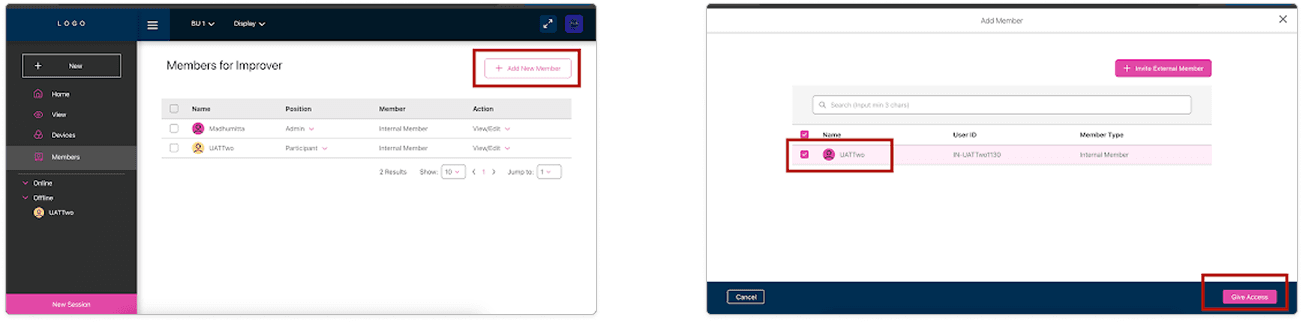
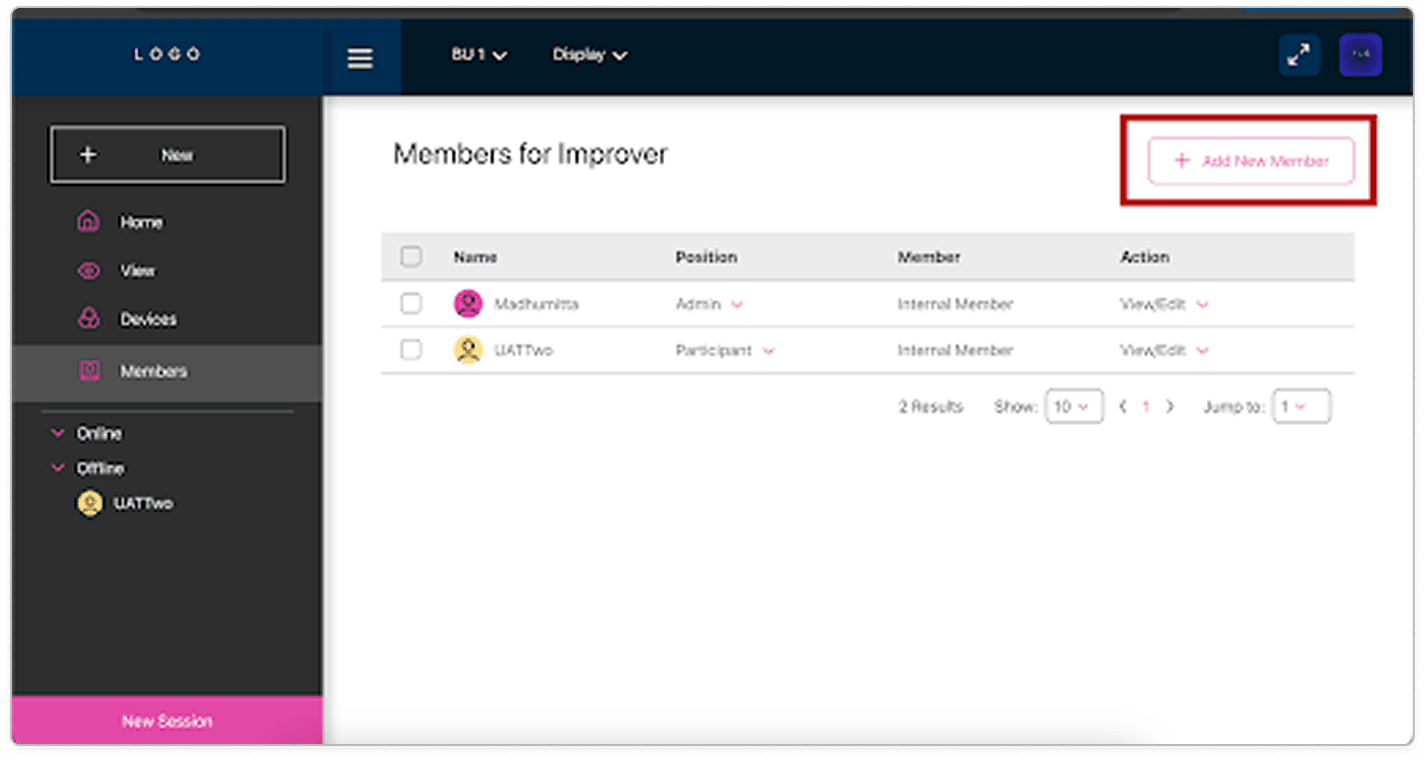
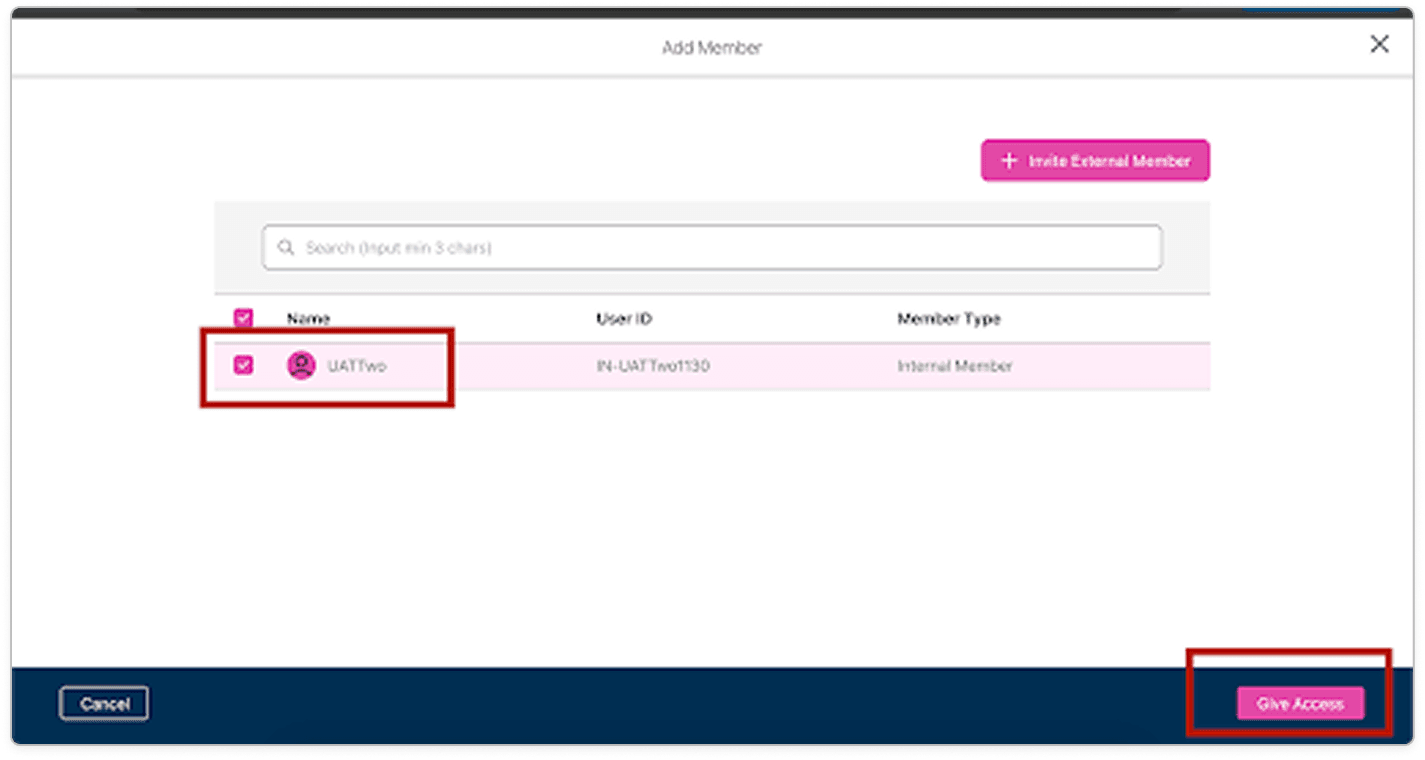
Select Members, then click on Add New Member to add new members to Improver. Search for the required member by name and send an invitation to join. Members can be added from the same Business Unit (BU) or other BUs as needed.
Create Instant Sessions
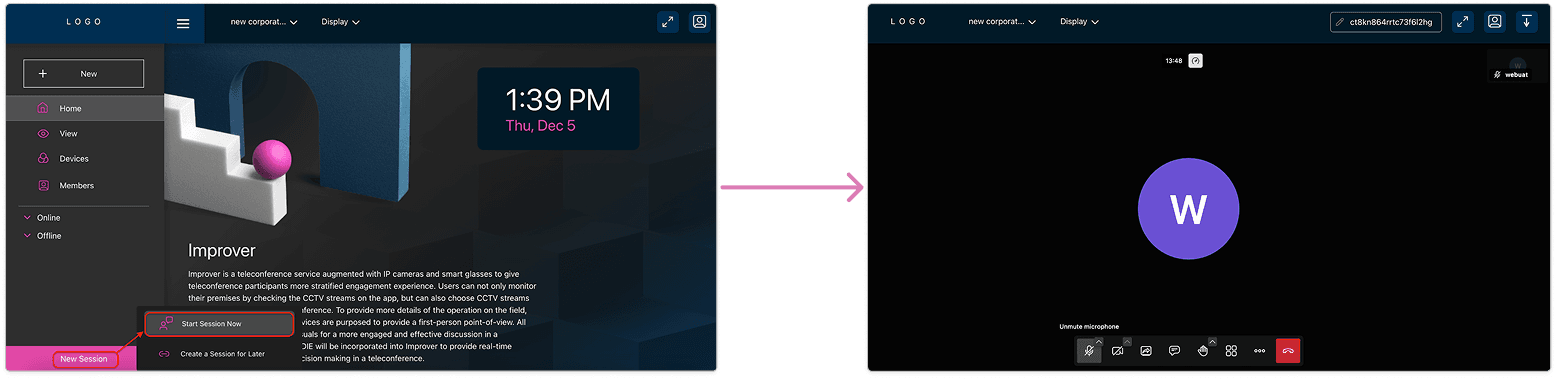
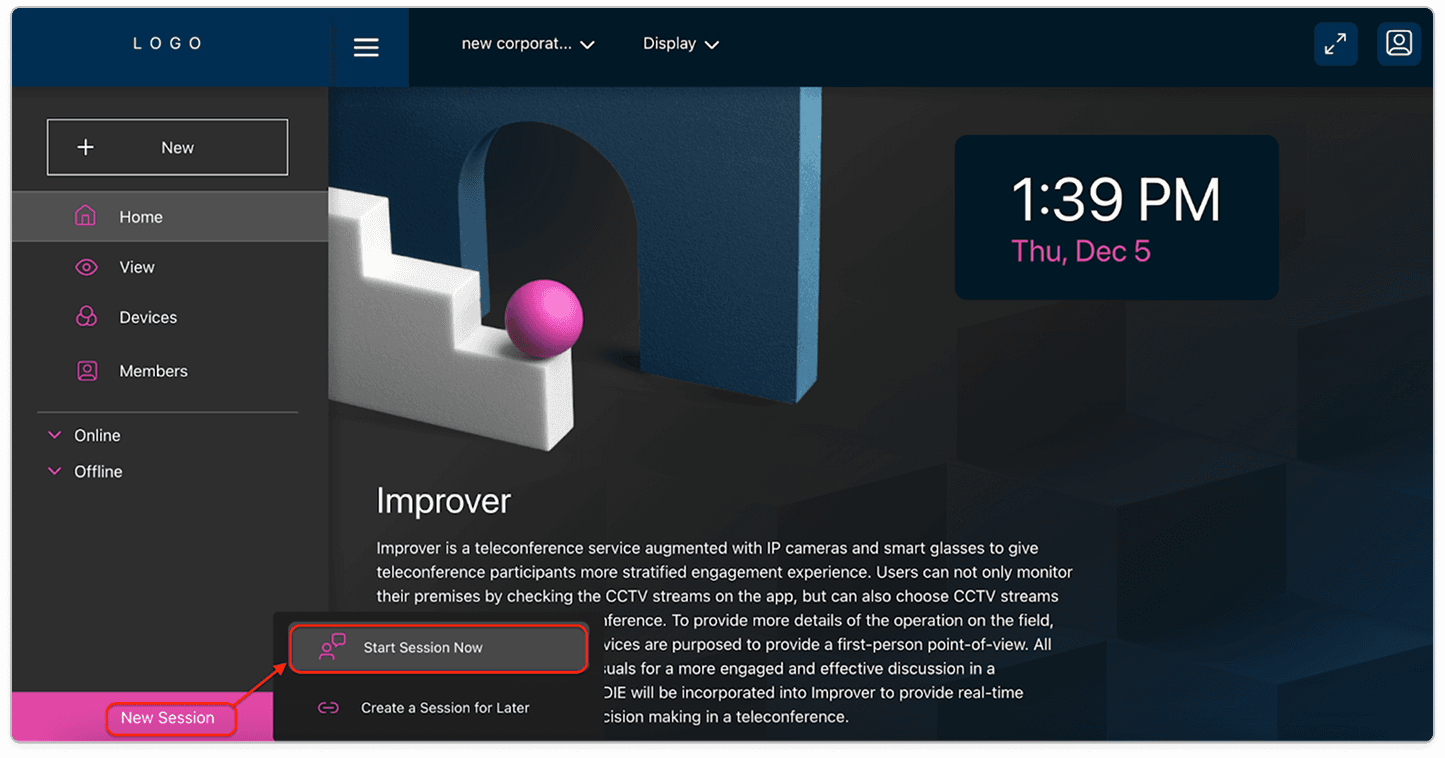
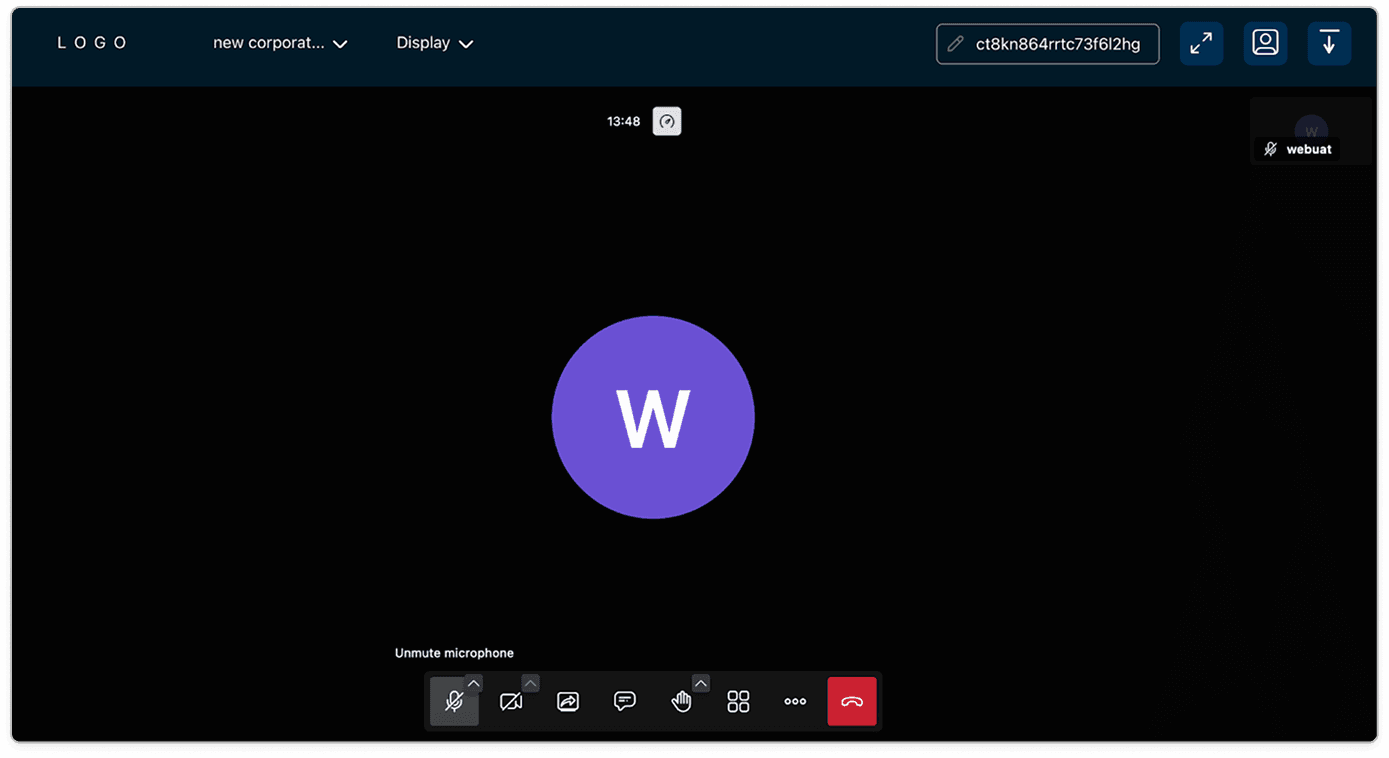
Click on Start New Session to create an instant meeting for Improver members. Share the generated link with other members to invite them to the session.
Add New CCTV Camera
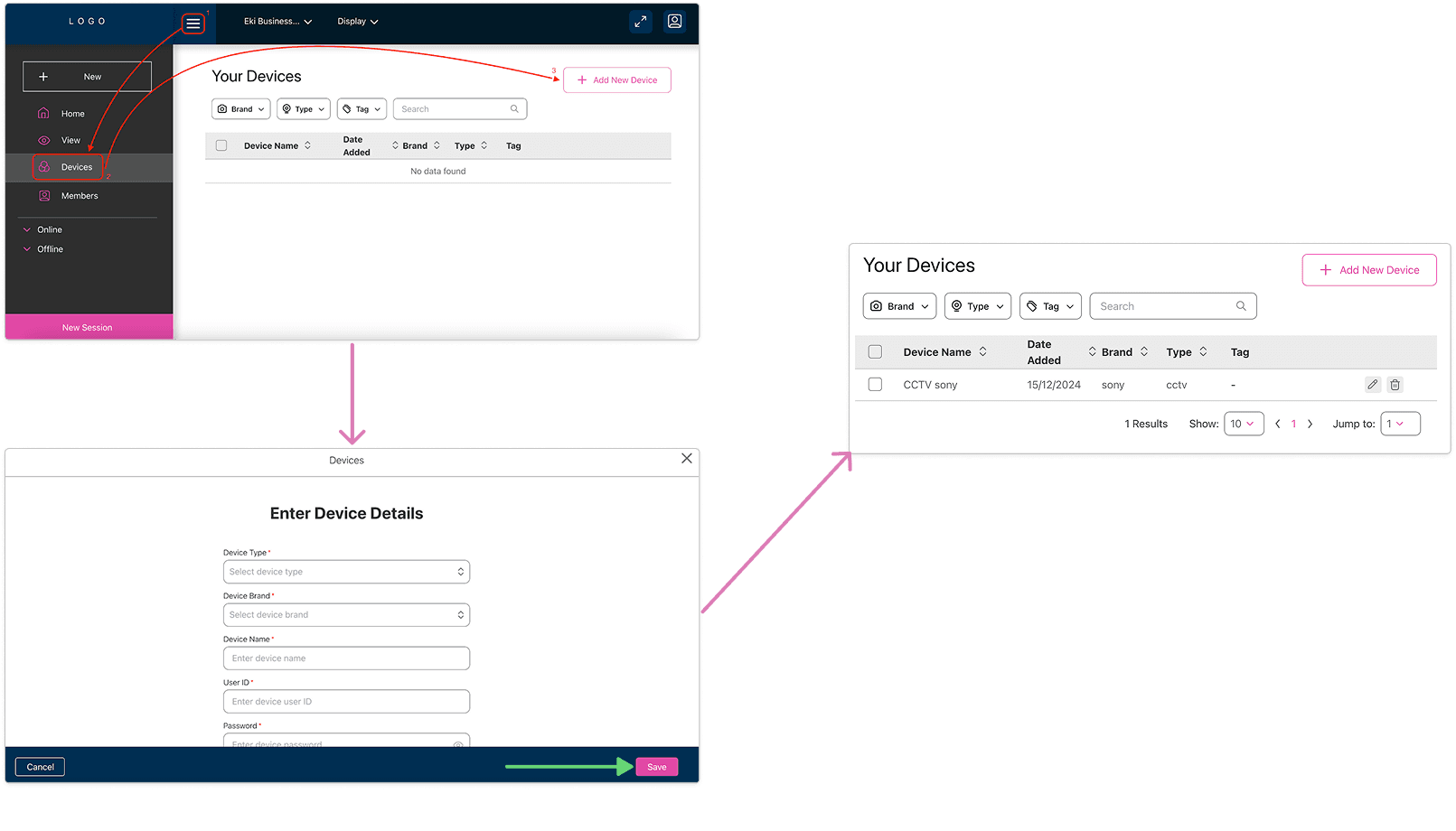
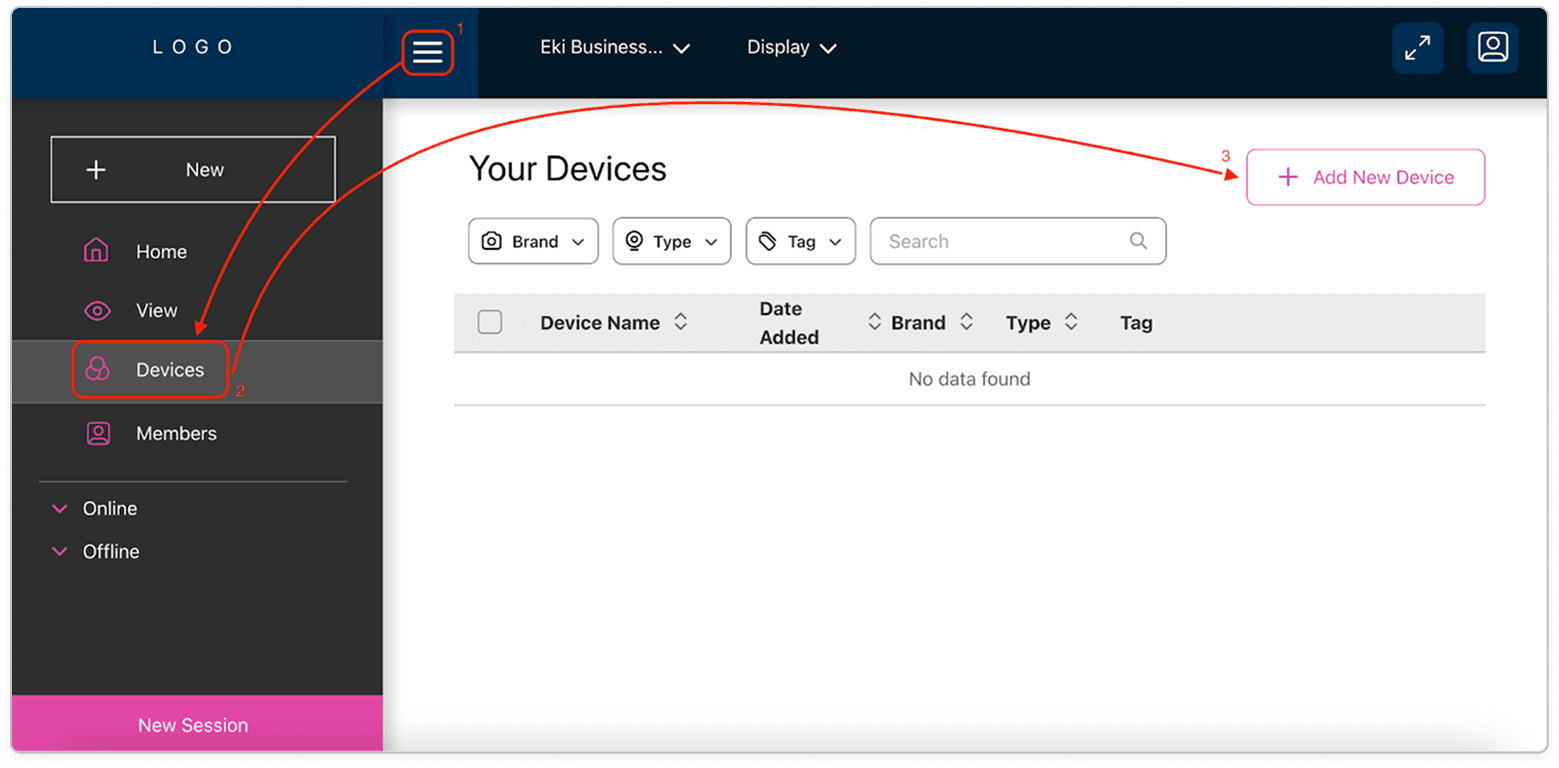
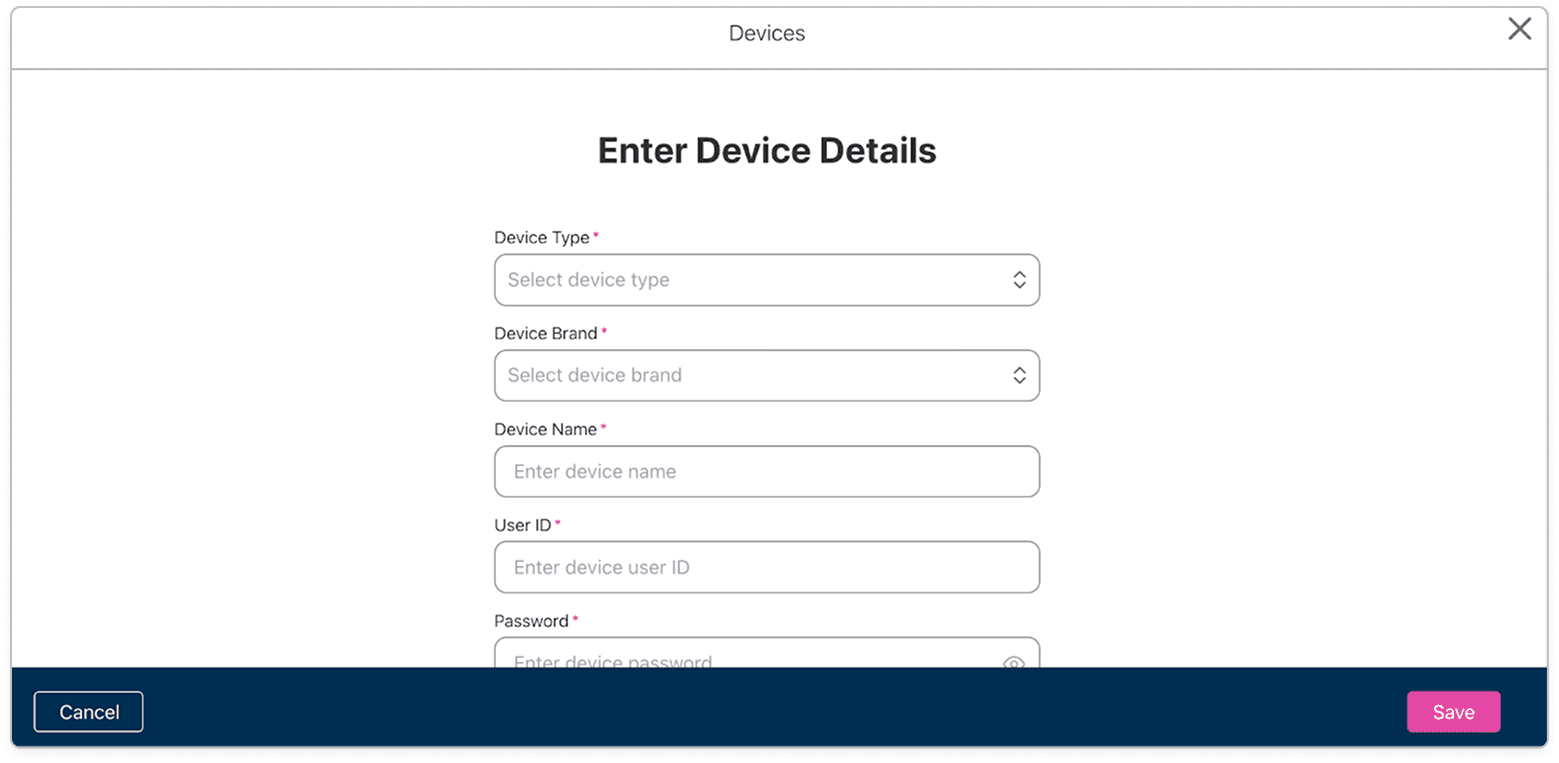
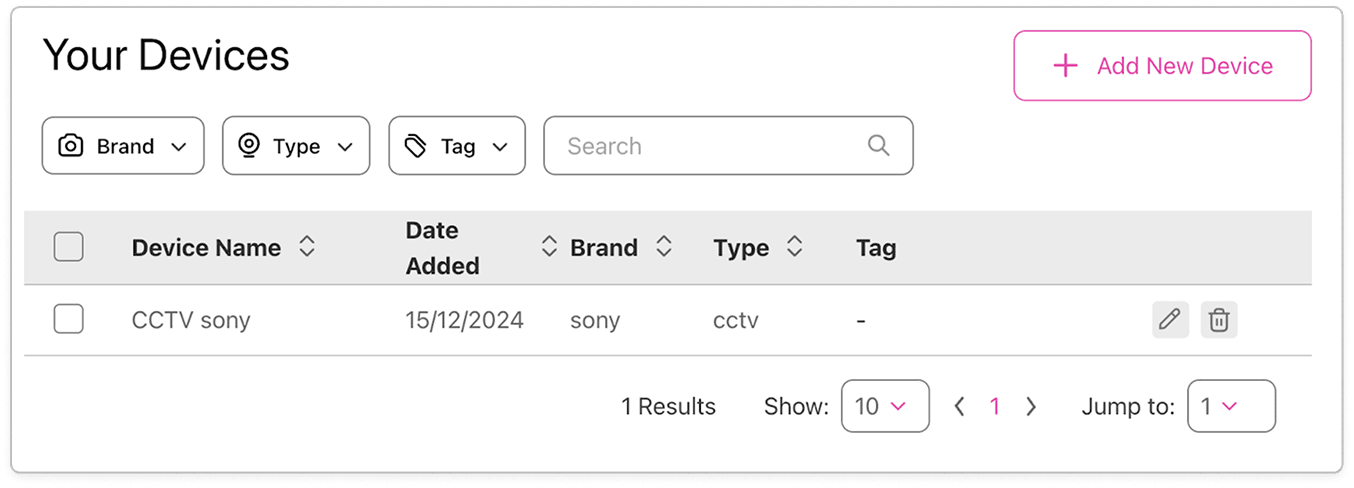
To add CCTV cameras in Improver, click on Devices, then select Add New Device. Enter the hardware details and select CCTV camera as the device type. Fill in the required details for the CCTV camera, then click Save to add the new CCTV to Improver
View CCTV Camera Feed
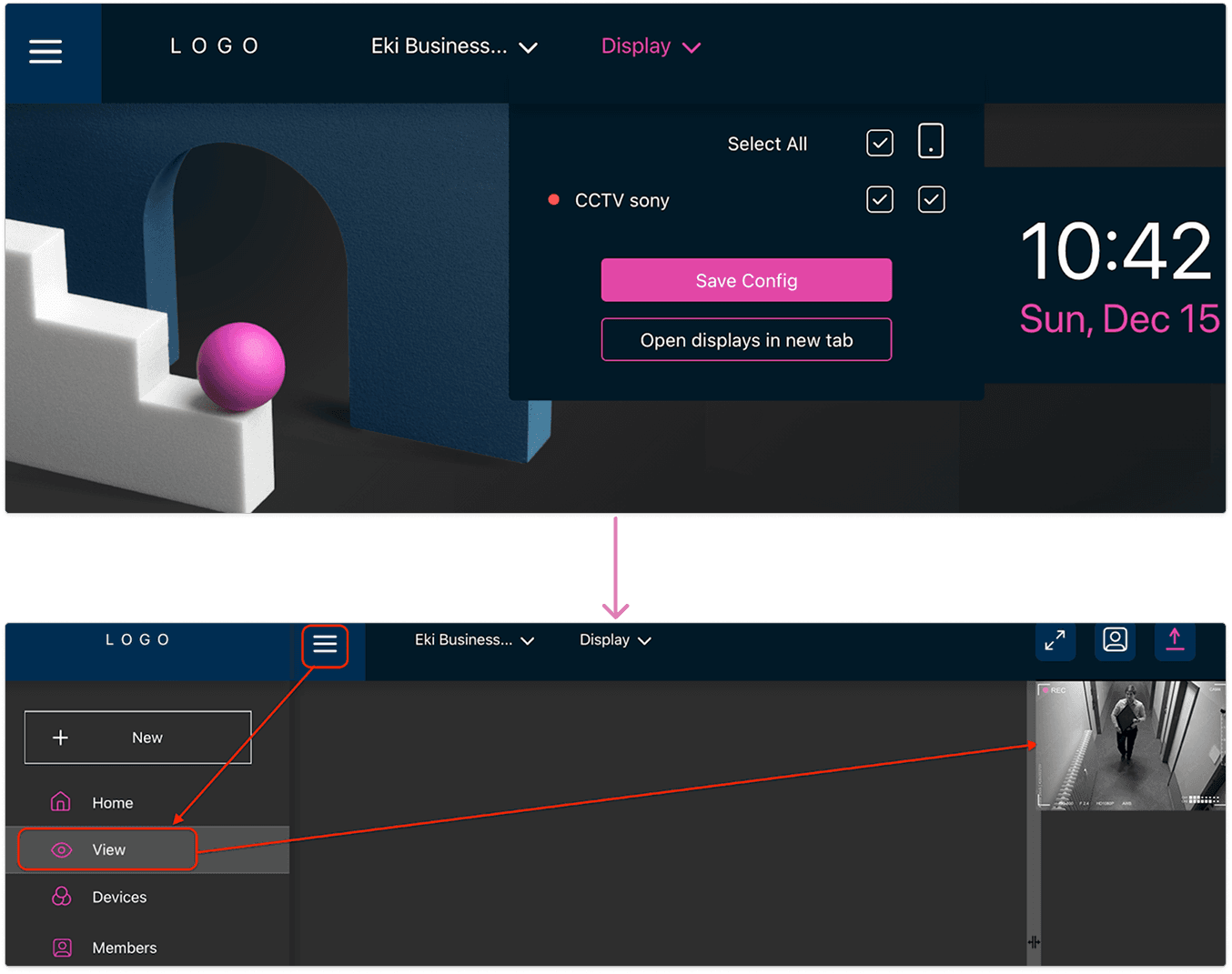
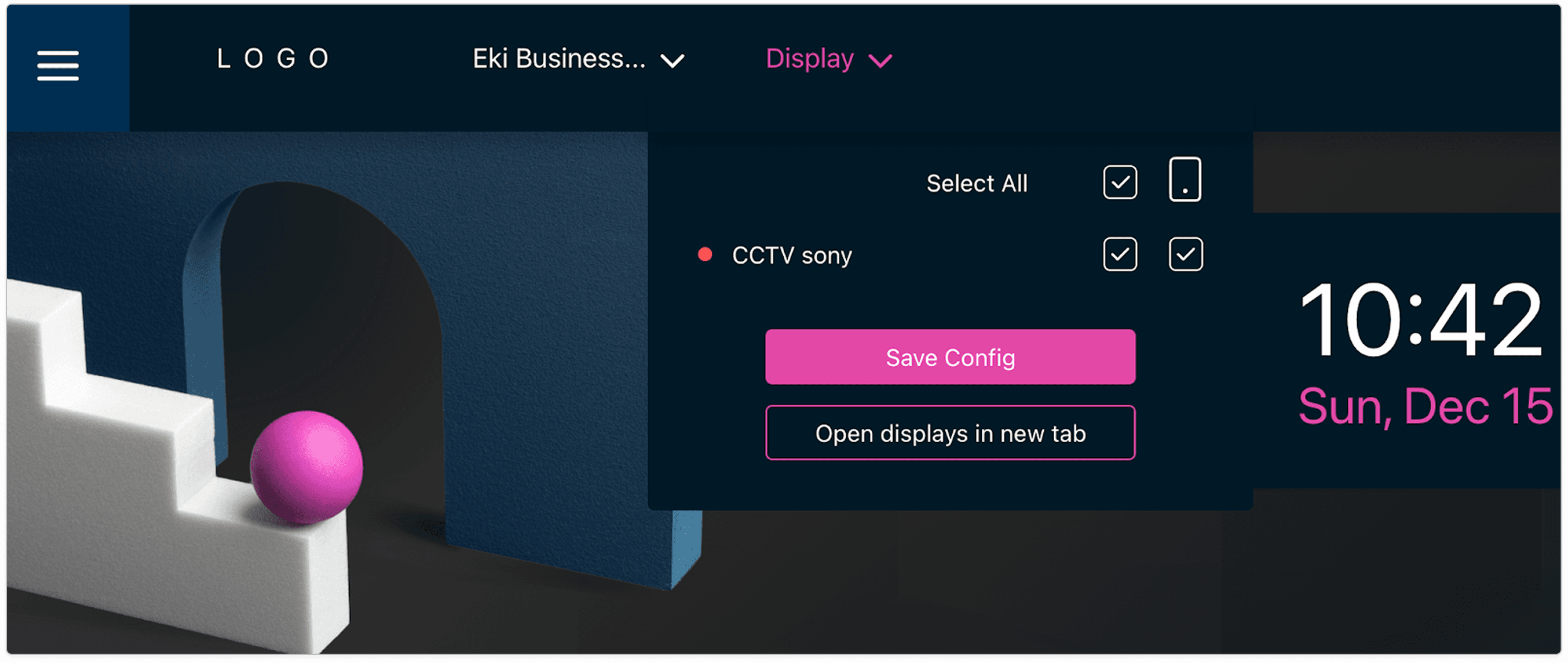
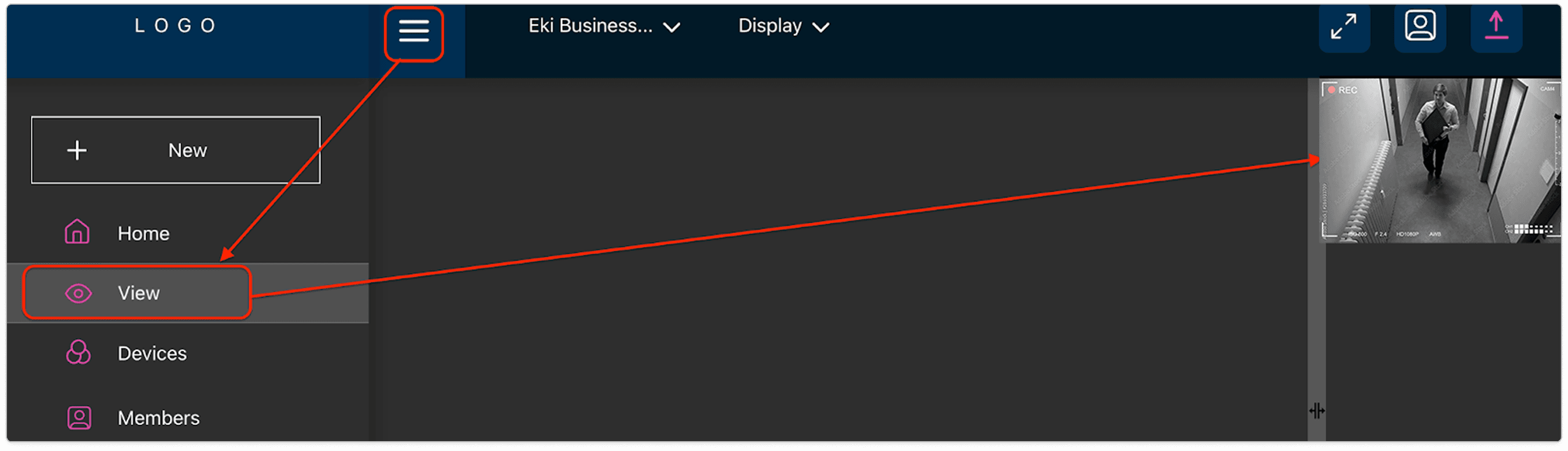
To view the CCTV camera video feed, click on View button and select the required camera. This will allow users to view the live stream of the CCTV camera within the Improver application.